When I blogged for the first time in July of 2015, my intention was to blog at least once a month. However, as you can see, that didn’t go very well. But here we are in 2016, and I am hoping I can do a better job this time around. My last blog was about installing Oracle VM on Windows 8.1.
This time, we are going to look at installing Oracle Enterprise Linux 6.5 for x86 64 BIT platform on a virtual machine inside Virtual Box.
Of course, to start with, we have to download the Linux software. This can be done by registering for an account, if you don’t have one, with Oracle’s e-delivery web site at https://edelivery.oracle.com.
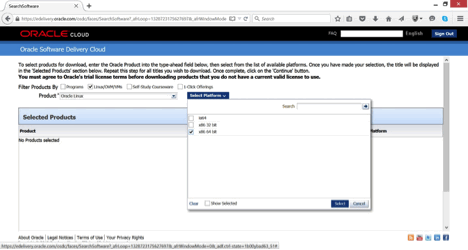
Once you have logged in and accepted the terms around export restrictions and license agreement, you will be guided to a page you can search for the software you want to download. You will need to choose the check box right next to Linux/OVM/VMs, and then do a search for Oracle Linux, and chose platform as x86 64 bit, and choose continue by scrolling down.
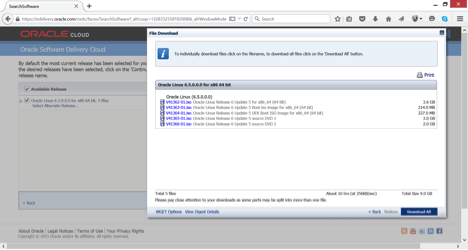
This will take you the next screen, which as of now, by default, displays OEL 7.x as the choice. But we are installing OEL 6.5 in this case. By choosing Select Alternate Release hyperlink, you will be guided to the page where you can choose the appropriate software, OEL 6.5 for x86 64 BIT in our case.
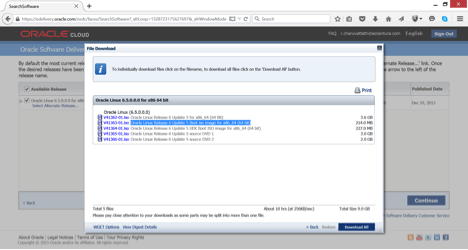
As you can see above, you are presented with a choice of downloads. In our case, we are going to choose the iso image.
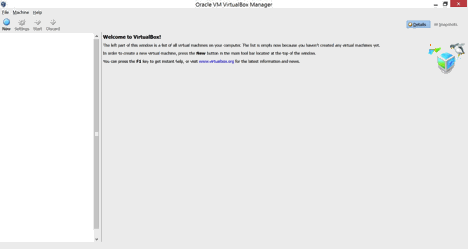
Once you have downloaded the software, we are ready to begin. Start Virtual Box by clicking on the appropriate icon.
Click on New and fill out the details. Note that you change the name at a later time too.
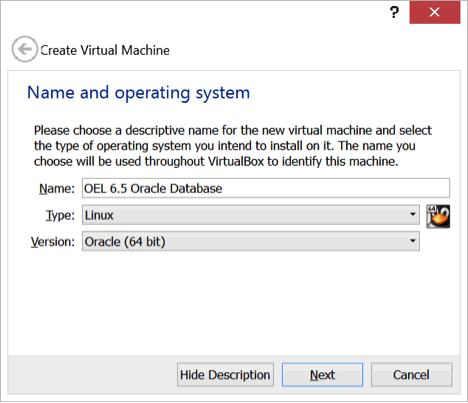
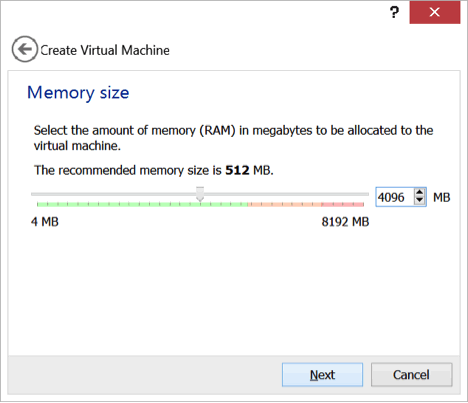
Click Next. My laptop has around 8GB of memory and I will be reserving around 4G for the VM. Note that one of my next blogs will be about installing Oracle database 12c on the Linux VM. So we need at least 4G to do so. Again, this setting can be changed after the VM has been created.
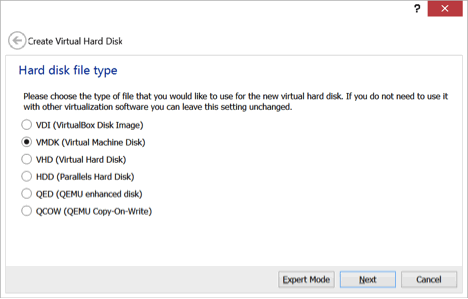
Next we have to choose the type of the new virtual hard drive we would like to create. In my case, I have chosen VMDK, which is same as the format that is supported by VMWare.
Click Next.
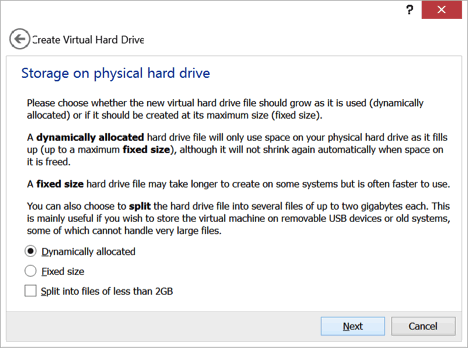
Next, we choose how space should be allocated for the new virtual disk we are about to create. I have chosen the space to be allocated dynamically.
Click Next.
We now have to name the disk and provide a size for the same. I will be reserving this virtual disk for the OS. In my next blog about installing Oracle, we will see how we can add more virtual disks for Oracle binaries, database files etc. as required.
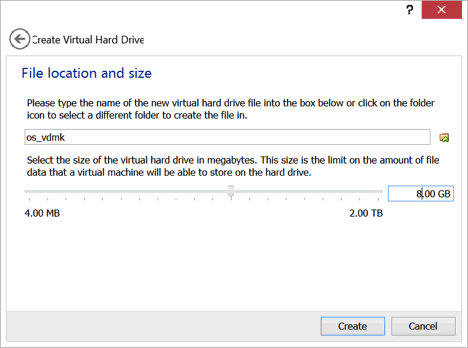
Click on Create. This should return you back to the main Virtual Box window.
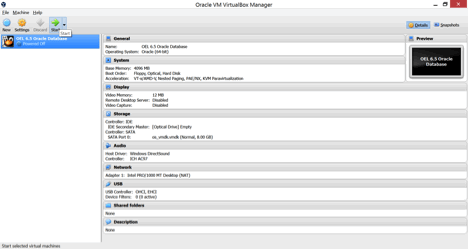
Click on Settings -> General -> Advanced. We will change the setting as below which would help us copy files etc. at a later time.
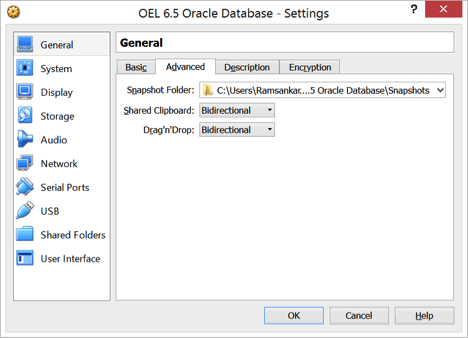
Click OK to save the changes.
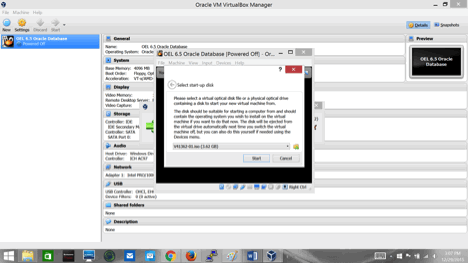
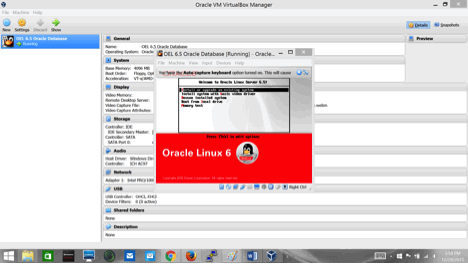
Now we can start the VM by clicking on the Start button. Since this is the first time we are starting the VM you should see a dialogue box asking to provide the location of a startup disk. We will choose the location of the ISO image for OEL 6.5 which we downloaded earlier. Click Start.
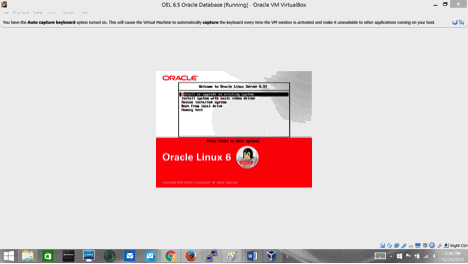
Press enter after choosing Install or Upgrade an existing system.
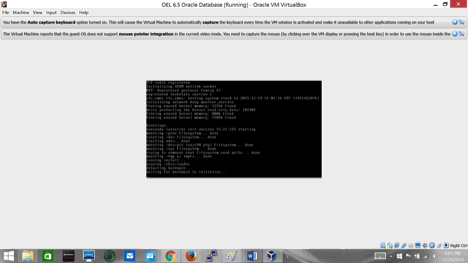
Skip the media test.
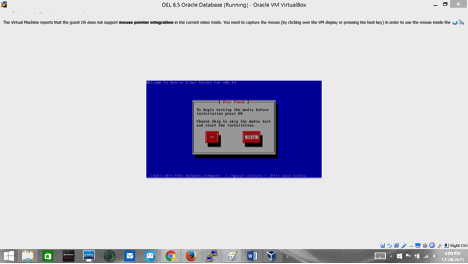
Click Next
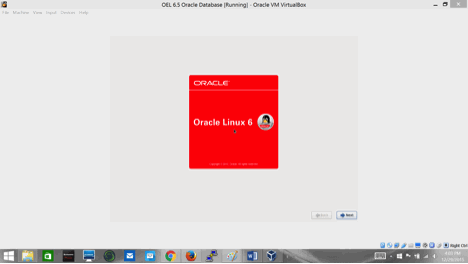
Choose the languages you want to install.
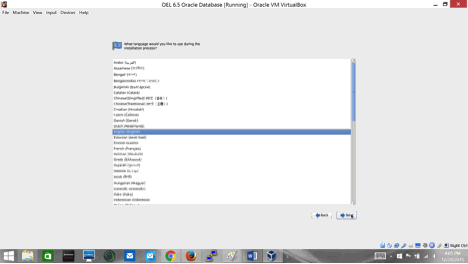
Click Next.
Choose the appropriate keyboard based on the languages you chose.
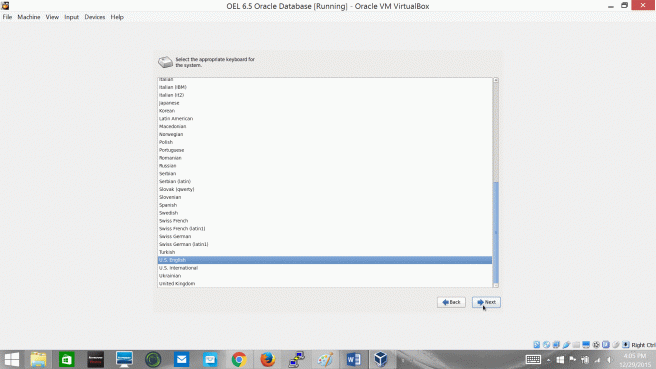
Click Next.
Choose as below and click next.
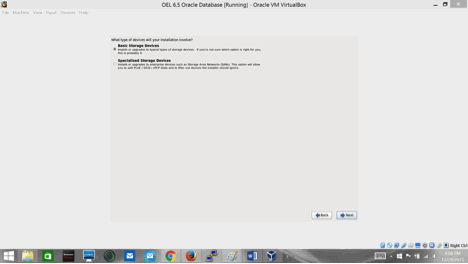
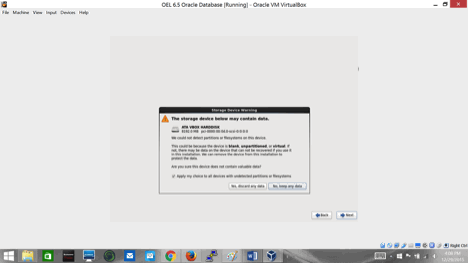
Choose “Yes, discard any data” and click next. Please note that this will only affect the VM disk you created earlier.
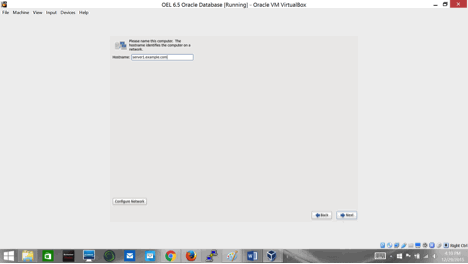
Next, we will pick a name for our Linux host. Click on “Configure Network” before clicking next.
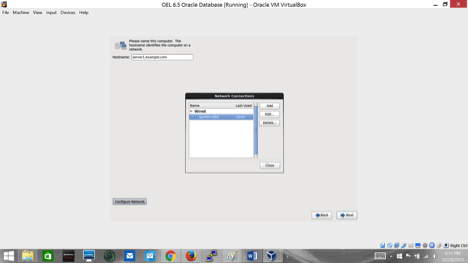
Assuming you have only one network card, you will get a similar dialogue box. Choose the device and click Edit.
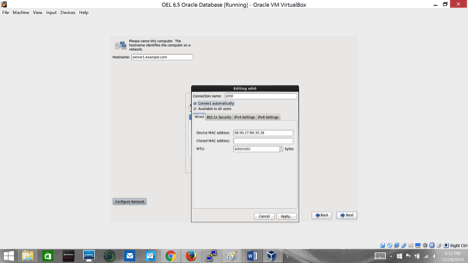
Make sure you check “Connect Automatically”
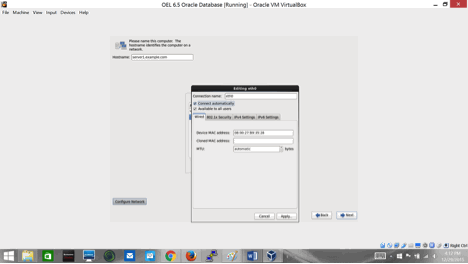
Apply, close, click next
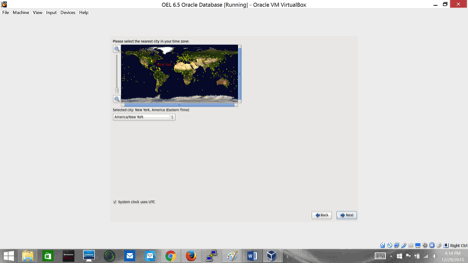
Choose the appropriate time zone and click next.
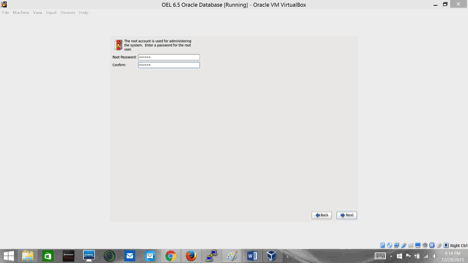
Next, provide a password for the “root” account. Click Next.
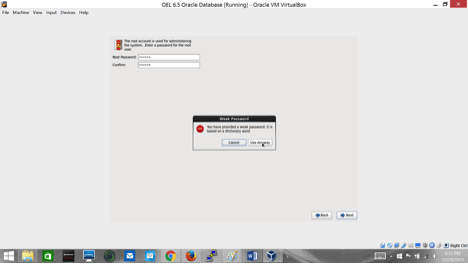
Since I chose a weak password for root, I received a dialogue box as below. Click Next to continue.
Next, we choose what the installer should do with the virtual disk we presented. In my case, I have chosen to remove any existing Linux system. Since this a new VM device, I could have chosen some of the other options as well.
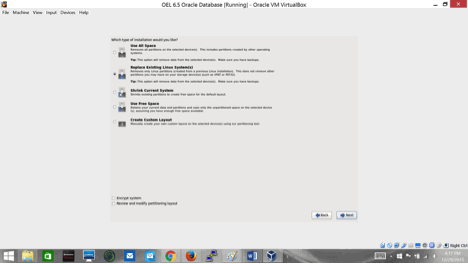
Click Next.
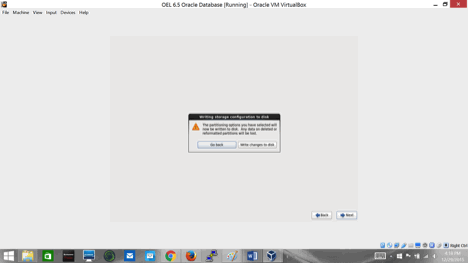
You will now choose Write Changes to disk. Note that it will only affect the device you presented earlier to this VM.
It is now time to select what software components to install. Remember, our goal is to setup this VM so we can install Oracle on it. So we are going to make selections accordingly as shown in the next few screens.
Choose Basic Server, and make sure you select Customize Now.
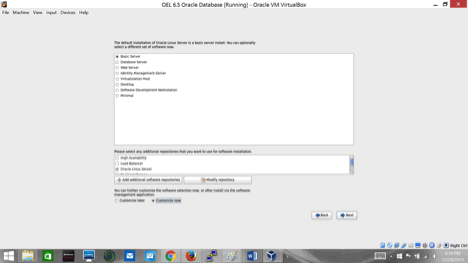
Click Next.
This should bring up the next screen, which should look similar to below screen. Choose “Servers”. Make your selection to match below.
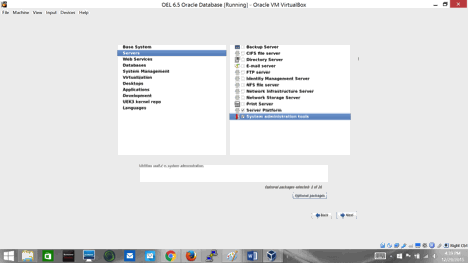
Note: DO NOT CLICK “Next” on this screen until you have selected all the software components as it will start the installation immediately.
For System administration tools, click on Optional packages and choose as below. Do not worry about it too much. If you miss to install a few of the required packages for Oracle installation or otherwise, we can always install it at a later time after the VM is up and running using YUM installer.
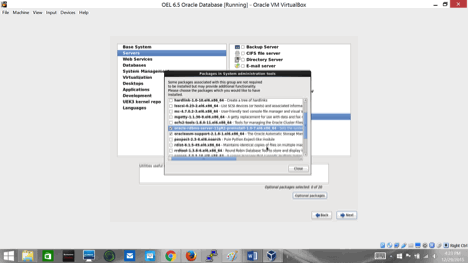
Note: DO NOT CLICK “Next” until you have selected all the software components as it will start the installation immediately.
Next, choose Desktops and make selections as below.
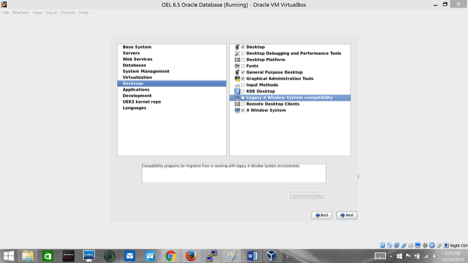
Note: DO NOT CLICK “Next” until you have selected all the software components as it will start the installation immediately.
Next, choose “Applications” and make your selections.
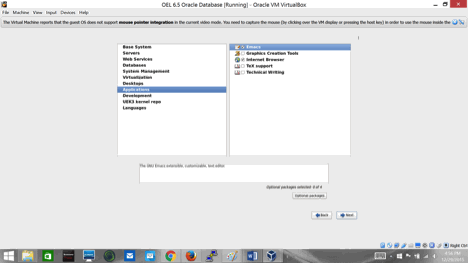
One you have selected all the required software components, click “Next” to begin installation.
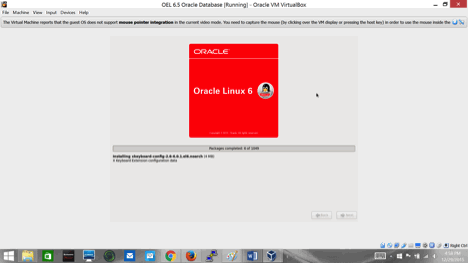
It will take a while before all the software components are installed.
Click Reboot once the installation is complete.
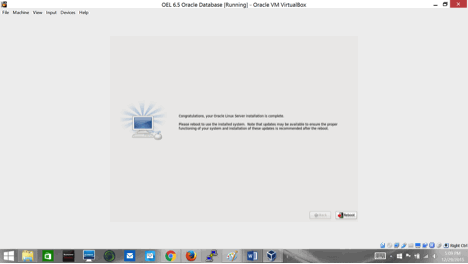
You should see several messages as below as the VM reboots.
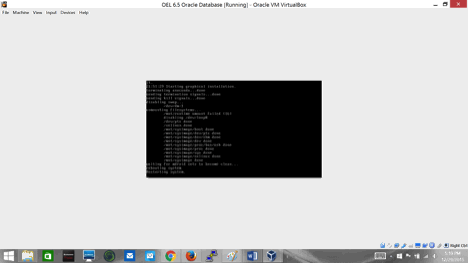
Once the VM reboots, we need to continue with the rest of configuration tasks before we can use the system.
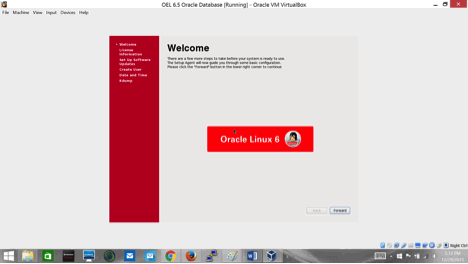
Click Forward.
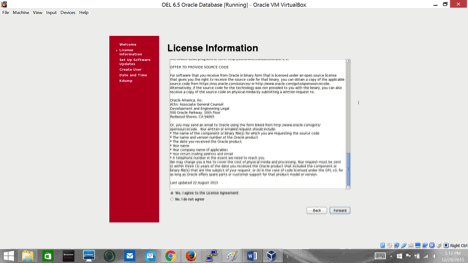
First, we need to accept the license agreement and click “Forward”.
Next, you will be presented with the option to register your system with the unbreakable Linux network. I have chosen not to register at this time.
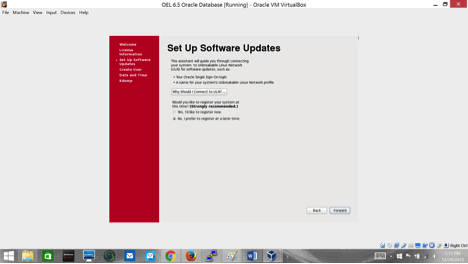
Click forward to continue with the setup and configuration.
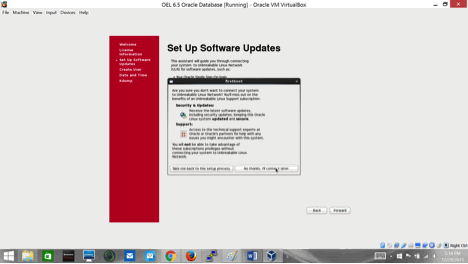
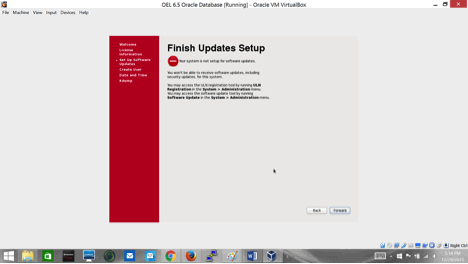
Click “Forward” to continue.
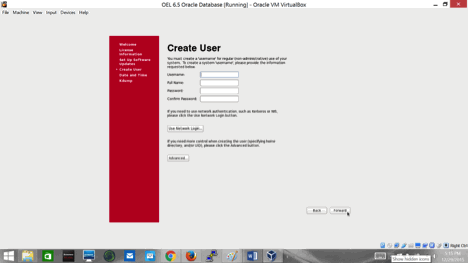
We have an option to create and additional user, but we will skip this for now and click “Forward” to continue.
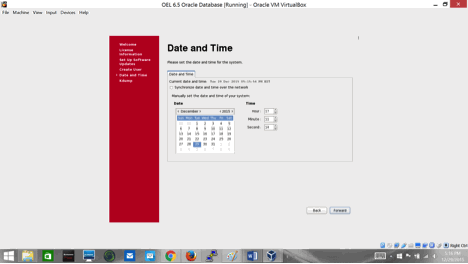
Choose the date and time and click “Forward”.
In the next screen, we have an option to enable kernel dump which could be helpful in analyzing system crash etc. I have chosen not to enable it at this time. Note that you can always enable it at a later time of need be.
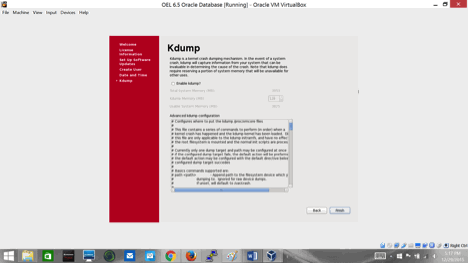
Click “Finish” to complete the system setup.
You should now see the screen below.
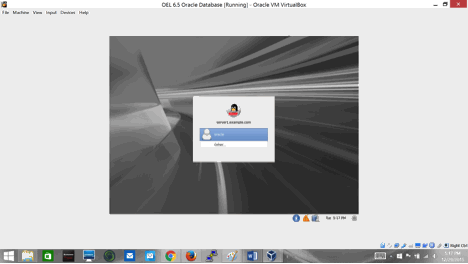
Since we choose some additional packages related to oracle, the system already comes with a predefined “oracle” account. However, we will choose “Other” and login as “root” for now. Later on when we are ready to install Oracle we will change the password for the “oracle” OS account.
Since we logged in as “root” user using the GUI, we will be presented with a message as below. We can ignore this for now and close the dialogue box.
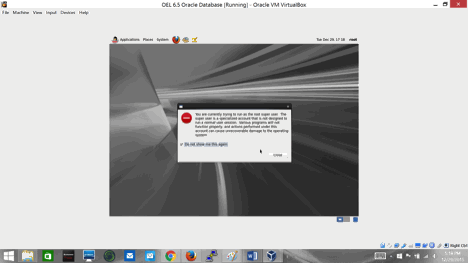
Our system is ready for use now.
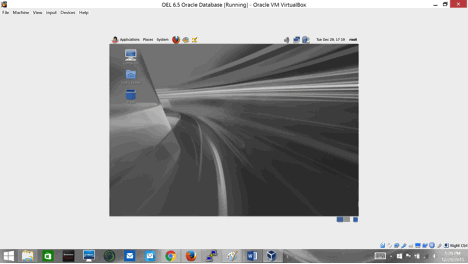
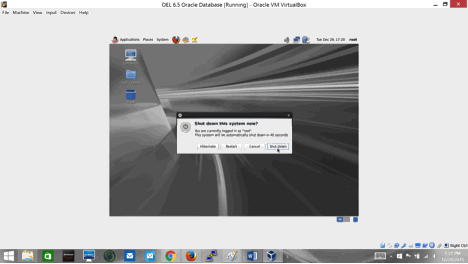
If you wish, you can play around a bit, or cleanly shutdown the machine until we are ready to install Oracle. If you choose to shut down your machine, follow the next few screens to do so.

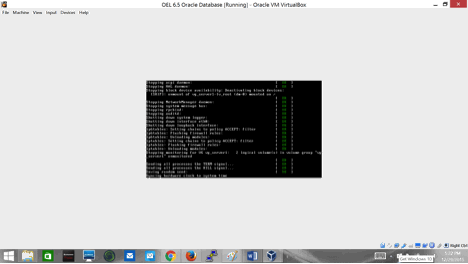
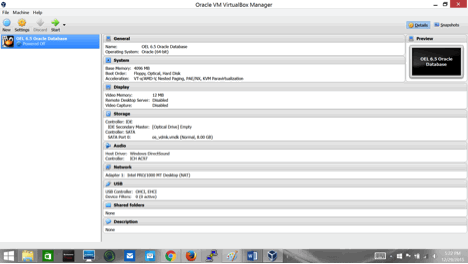
There we are. We have successfully installed Oracle Enterprise Linux (OEL) 6.5 64 BIT OS on our newly created VM. In the next blog, we will see how we can install Oracle 12c database on our new VM.
 Oracle Database Blog